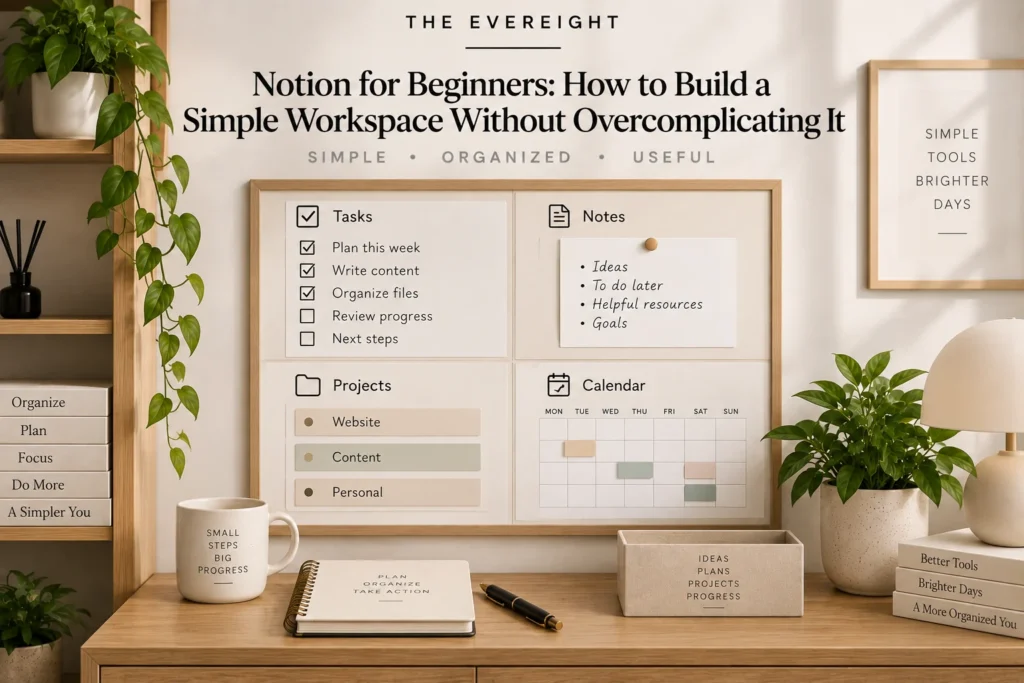
Notion can hold notes, tasks, projects, databases, documents, calendars and more. That flexibility is useful, but it creates a beginner problem: because you can build almost anything, it is easy to build far too much.
A good first Notion workspace should be boring in the best possible way.
You should know where tasks go, where project information goes and where useful reference material lives. You do not need a “second brain,” twelve dashboards or an elaborate life operating system on day one.
Editorial Note: This guide uses current official Notion documentation for changeable product details. The organization method itself is deliberately simple and platform-neutral.
Quick Answer
Start with four things: 1. Home. 2. Tasks. 3. Projects. 4. Notes/Reference.
Use simple pages first.
Add databases only when you repeatedly need to sort, filter or connect many similar items.
Use Notion’s Free plan while learning unless a paid limitation is genuinely blocking your workflow.
What Is Notion?
Notion is a cloud-based workspace for pages, databases, notes, projects and collaboration.
It is currently available through web, desktop and mobile experiences.
Official system requirements change, so check Notion’s current support page if you use older hardware or operating systems.
The Beginner Rule: Build for Retrieval
Do not ask: “How can I make my workspace impressive?”
Ask: “Where would I look for this next Tuesday?”
A useful system makes retrieval predictable.
Step 1: Create a Home Page
Your Home page should be a doorway, not a storage room.
Include links to:
- Tasks.
- Projects.
- Notes.
- Reference.
- Optional weekly review.
Avoid putting every database view and life category on the first screen.
Step 2: Create a Simple Task List
A beginner task system needs only a few fields:
- Task.
- Status.
- Due date, when truly needed.
- Project, if relevant.
You do not need fifteen priority levels.
If a checkbox list works, start there.
Move to a database when you need filtering, recurring views or many tasks.
Step 3: Separate Projects From Tasks
A project is an outcome that takes multiple actions.
“Plan conference” is a project.
“Email venue” is a task.
Create a Projects page with:
- Project name.
- Desired outcome.
- Next action.
- Deadline, if real.
- Notes.
This keeps large commitments from hiding inside a task list.
Step 4: Create a Notes Area
Use Notes for information you create or capture.
Examples:
- Meeting notes.
- Ideas.
- Research.
- Learning notes.
- Drafts.
Do not force every note into a complex category immediately.
A simple searchable archive is often enough.
Step 5: Create Reference
Reference is information you may need again but do not need to act on.
Examples:
- Procedures.
- Checklists.
- Travel information.
- Product documentation.
- Important links.
Tasks and reference should not be mixed.
If something requires action, create a task and link back to the reference.
Pages vs Databases
Use a normal page when:
- Content is unique.
- You do not need to filter it.
- The structure is simple.
Use a database when:
- Many items share the same structure.
- You need views.
- You need sorting/filtering.
- You want properties such as status, date or owner.
Databases are powerful, but they should solve a repeated problem.
What Notion Databases Can Do
Notion’s current Free offering includes database capabilities such as properties, filtering and project-oriented structures.
Paid plans add or expand other collaboration, file, history and workspace capabilities.
Do not upgrade just because a template uses a paid feature.
Templates: Useful, but Start Small
Templates can teach you what is possible.
The risk is importing someone else’s complexity.
Before using a template, ask:
- What problem does this solve?
- Which sections will I use weekly?
- What can I delete?
If you cannot explain a database, do not make it central to your system.
A Simple Weekly Dashboard
Your Home page can show:
- This week’s priorities.
- Active projects.
- Quick links.
- Inbox/capture area.
That is enough.
The dashboard should reduce navigation, not become another project to maintain.
Capture Without Creating Chaos
Create one Inbox or Quick Capture page.
During the day, add:
- Tasks.
- Notes.
- Ideas.
- Links.
During a short review, move each item to the correct home.
Capture first. Organize later.
Notion Calendar
Notion currently includes Notion Calendar in its plan ecosystem.
A calendar can be useful when time-specific commitments matter, but do not turn every task into a calendar event.
Your calendar should protect real time commitments.
Your task system should hold actions.
Notion AI
Current Notion pricing makes full Notion AI functionality a Business/Enterprise capability, while Free and Plus receive limited trial access.
Notion AI can currently help with tasks such as generating/editing documents, answering questions about workspace information, database assistance and other AI workflows.
Do not design your beginner system around AI.
First make the underlying information understandable without AI.
Offline Use
Notion’s current pricing and help information includes offline use in desktop and mobile apps, with plan/product behavior subject to current documentation.
If offline access is important, test the exact pages and devices you expect to use before depending on it.
Mobile Use
Notion’s main mobile app supports reading, editing and commenting, but some workspace administration and desktop-style actions are not available on mobile.
Build complicated databases on a larger screen when practical.
Use mobile primarily for capture, quick review and simple updates.
File Uploads
Current Notion plans have different file-upload limits and page-history allowances.
These are changeable details.
If you store large files, compare the current official plan table rather than assuming Notion is a replacement for dedicated file storage.
Sharing
Notion can share pages and support collaboration.
Before sharing, check:
- Who can view?
- Who can edit?
- Is the page public?
- Does it contain private information?
- Are linked databases exposing more than intended?
Permissions deserve deliberate review.
A 60-Minute Beginner Setup
First 10 minutes: Create Home, Tasks, Projects and Notes.
Next 15: Add current tasks.
Next 15: Add active projects.
Next 10: Add useful reference links.
Final 10: Delete anything you do not understand.
That last step matters.
Your First Database
If you want one database, make it Tasks.
Keep properties minimal:
- Name.
- Status.
- Due.
- Project.
Use it for two weeks before adding more.
When to Add a Project Database
Add one when:
- You have several active projects.
- You need to filter active vs completed.
- You want each project linked to tasks.
- You review projects weekly.
Do not add it because a YouTube setup looks impressive.
When to Use Relations
Relations can connect databases.
For example: Tasks can relate to Projects.
That is useful when the relationship improves retrieval.
It is unnecessary when a simple project name in a task is enough.
Common Beginner Mistakes
Building before using
You spend six hours designing a system and zero hours doing work.
Too many properties
Every field creates maintenance.
Too many dashboards
One Home page is usually enough at first.
Copying complex templates
A template built for another person’s life may create friction.
Tracking everything
Not everything needs a database.
Constant redesign
Use the same system long enough to discover real problems.
A Simple Maintenance Routine
Daily:
- Capture.
- Check tasks.
- Update important project status.
Weekly:
- Clear Inbox.
- Review active projects.
- Archive completed items.
- Remove stale tasks.
Monthly:
- Delete unused views.
- Simplify properties.
- Review whether the system still makes sense.
Privacy and Sensitive Information
Notion publishes privacy and security documentation, including information about customer data, backups and AI processing.
Still, your own policy matters.
Do not place confidential company, client, medical, financial or regulated information in a personal workspace unless you are authorized to do so.
For workplace use, follow organizational requirements.
Free vs Paid for Beginners
Start Free when:
- You are learning.
- You work mainly alone.
- Current Free limits are sufficient.
Consider paid plans when:
- Collaboration requires it.
- File/history/site features matter.
- Your team needs the capabilities of a higher plan.
- Current AI functionality is a genuine business requirement.
Verify current prices and plan inclusions before upgrading.
The Beginner Workspace Blueprint
Home
- Weekly priorities
- Quick links
- Inbox
Tasks
- To do
- Doing
- Done
Projects
- Active
- Waiting
- Completed
Notes
- Meetings
- Ideas
- Research
Reference
- Checklists
- Procedures
- Useful links
Stop there until something hurts.
EverEight Pro Tip
Every time you want to add a new database, wait seven days. During that week, write down the exact moments the missing database causes friction. If you cannot collect three real examples, you probably do not need it yet.