Digital clutter is easy to ignore because it does not take up physical floor space.
But scattered files, duplicate downloads, screenshots, email attachments and notes stored in five apps create a different kind of mess: you know the information exists, but you cannot reliably find it.
A digital organization system should answer one question quickly: where would I look for this?
Quick Answer
Give each type of information one primary home. Use a simple top-level folder structure, consistent file names, one task system, one notes location, and an inbox for unprocessed items. Archive completed material instead of endlessly reorganizing it. Back up important data and review the system briefly each month.
Define the Main Homes
Decide where these live:
- Calendar: scheduled commitments.
- Tasks: actions.
- Notes: reference and thinking.
- Files: documents and project assets.
- Email: communication.
- Photos: photo library.
- Passwords: reputable password-management system.
Avoid storing the same category across several places without a clear reason.
One Home Does Not Mean One Device
Cloud services may sync across phone, tablet and computer.
The important distinction is logical location.
If “work files” have one primary system, you can know where to search even when accessing it from different devices.
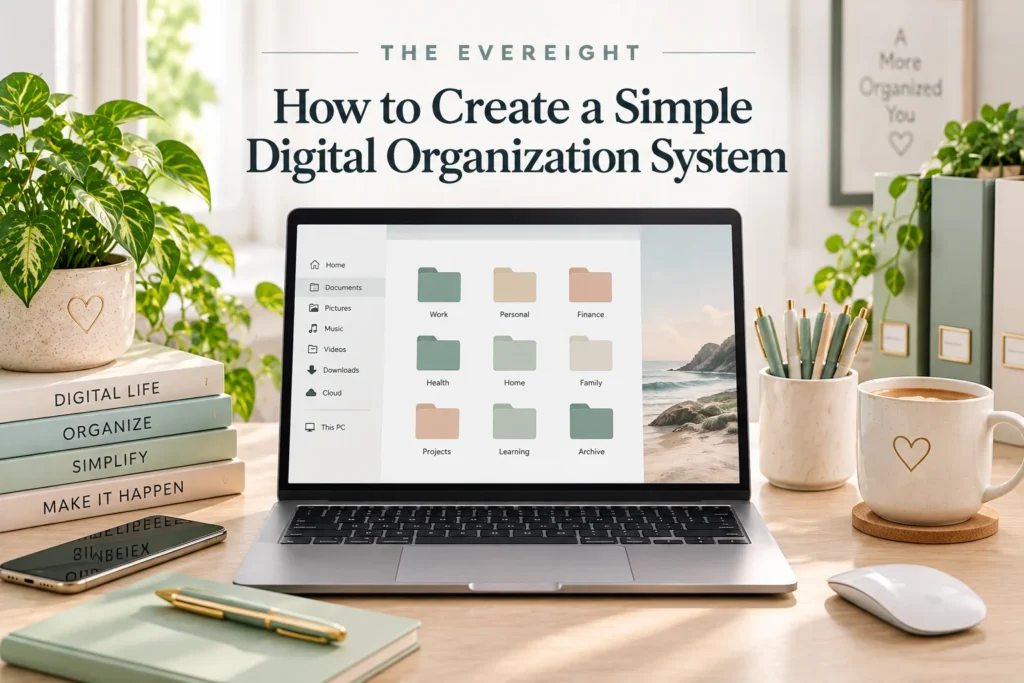
Start With Top-Level Folders
Use broad categories.
Example:
- Personal
- Work
- Finance
- Home
- Education
- Projects
- Archive
Your needs may differ.
Keep the first level small enough to scan quickly.
Avoid Deep Folder Mazes
A path such as: Documents > Personal > Home > House > Maintenance > 2026 > Plumbing > Receipts > Paid
may be too deep.
Search and good filenames can reduce the need for many nested levels.
Aim for the shallowest structure that still makes sense.
Organize by Retrieval
Ask: “What would I remember when searching for this?”
For a tax document, year may matter.
For a project, project name may matter.
For a receipt, vendor and date may matter.
Organize around how you retrieve information, not how impressive the hierarchy looks.
Use Consistent File Names
A useful filename can include:
- Date.
- Project.
- Document type.
- Version when necessary.
Example: 2026-09_ProjectName_Budget_v02.xlsx
Do not use: final_final_REALLYFINAL2.xlsx
A consistent pattern improves sorting and search.
Dates in File Names
The YYYY-MM-DD format sorts chronologically in many systems.
Use it when date is meaningful.
Not every file needs a date.
A permanent reference guide may be better named by topic.
Version Control for Ordinary Users
For simple work, use:
- v01
- v02
- v03
When approved:
- FINAL
If collaboration software already maintains version history, manual versions may be less necessary.
Verify how your specific platform handles history before relying on it.
Create a Downloads Routine
Downloads folders become digital junk drawers.
Once or twice a week:
- Delete installers no longer needed.
- Move important documents.
- Rename unclear files.
- Remove duplicates.
- Leave temporary files only if they are still active.
Do not build a complex folder system inside Downloads.
Desktop Clutter
Use the desktop for temporary active items only if that helps you.
A clean desktop is not morally superior.
But if dozens of icons make retrieval difficult, create:
- Active
- To File
Then process them weekly. If you want a broader routine for reviewing tasks, calendars and home essentials together, follow our weekly reset guide.
Screenshots
Screenshots multiply quickly.
Ask whether each screenshot is:
- Temporary.
- Reference.
- Evidence/record.
- Inspiration.
Delete temporary screenshots after use.
Move important records into the relevant system.
Notes
Choose a primary notes location.
Use simple sections such as:
- Inbox.
- Projects.
- Reference.
- Archive.
Do not create 40 tags before you have 40 useful notes.
Search can handle much of the retrieval.
Tasks Do Not Belong in Notes
A meeting note can say: “Need revised quote.”
But create the actual task: “Request revised quote from supplier.”
Otherwise the action disappears when the note is closed.
Email Attachments
If an attachment matters beyond the email thread, save it to the appropriate file system.
Do not rely on remembering which email contained the final contract, invoice or presentation.
Keep records according to organizational, legal and privacy requirements.
Photos
Photo libraries often have strong date and search functions.
You may not need to manually sort every photo into folders.
For important project photos, exported copies may belong with project files.
Back up irreplaceable images.
Cloud vs Local Storage
Cloud storage can provide syncing and off-device access.
Local storage can provide direct control and offline access.
Many people use both.
Consider:
- Security.
- Backup.
- Access.
- Collaboration.
- Storage limits.
- Privacy.
- Cost.
Features and pricing change, so verify current provider information.
Backup Is Different From Sync
Sync keeps files aligned across locations.
If a synced file is deleted, that deletion may propagate.
A backup is a separate recoverable copy or version designed for restoration.
Understand the recovery options of your chosen system.
Important data deserves a deliberate backup strategy.
The 3-2-1 Concept
A commonly used backup principle is to maintain multiple copies, on different media or systems, with at least one copy separated from the primary environment.
The exact implementation depends on your data and risk.
Businesses may require formal IT policies.
Passwords
Do not create a spreadsheet of passwords in an ordinary unprotected folder.
Use a reputable password manager or your organization’s approved credential system.
Enable multifactor authentication where appropriate.
Never reuse critical passwords simply to make digital organization easier.
Sensitive Documents
Identity documents, financial records, medical information and confidential work files deserve appropriate access controls.
Do not put sensitive material into a convenient app without understanding privacy and sharing settings.
Follow workplace policies for company information.
Shared Folders
For collaboration, define:
- Who owns the folder.
- Who can edit.
- Naming rules.
- Where final files go.
- What happens when the project ends.
Avoid personal copies scattered across team members’ desktops.
Archive Instead of Delete
Completed projects can move to Archive.
An archive reduces active clutter while preserving records.
Use year or project grouping if helpful.
Follow legal or organizational retention rules where applicable.
Build an Inbox
A digital inbox is a temporary holding area for items not yet organized.
Examples:
- Downloads.
- Notes inbox.
- Scan inbox.
Process it on a schedule.
An inbox becomes clutter when it is never emptied.
Monthly Digital Reset
Once a month: 1. Clear Downloads. 2. Review desktop. 3. Process notes inbox. 4. Archive completed projects. 5. Check backup status. 6. Review shared access where important. 7. Delete obvious duplicates.
Stop after 20-30 minutes.
You do not need to inspect every file.
What About Tags?
Tags can help when one item belongs to several contexts.
But tags require maintenance.
Start without them.
Add a tag only when you repeatedly need a cross-category view that folders and search cannot provide.
Search Is Part of Organization
Modern operating systems and cloud tools often provide powerful search.
Good filenames improve search.
You do not need to remember every folder path.
The goal is predictable retrieval.
Digital Organization for Work
Follow employer policies first.
Your company may require:
- Approved storage locations.
- Naming conventions.
- Retention schedules.
- Access controls.
- Restricted sharing.
A personal productivity preference should never override information-security policy.
Do You Need Organization Software?
Not necessarily.
Your operating system, cloud storage, calendar, notes and task tools may already be enough.
Specialized software can help when you need collaboration, databases, automation or cross-project views.
Article #68 will compare productivity tools.
A Two-Hour Initial Setup
First 20 minutes: Define top-level folders.
Next 30 minutes: Move obvious active files.
Next 20 minutes: Clean Downloads/Desktop.
Next 20 minutes: Choose notes/task homes.
Next 15 minutes: Review backup.
Last 15 minutes: Stop.
Do not spend an entire weekend sorting ten years of files.
Common Digital-Organization Mistakes
Too many folders: Retrieval becomes navigation.
Too many apps: Information fragments.
Renaming everything at once: Setup becomes exhausting.
No backup: Organization is mistaken for protection.
Keeping tasks inside notes: Actions disappear.
Saving sensitive files anywhere convenient: Privacy risk increases.
EverEight Pro Tip
Create a “Where Things Live” note with five lines: Tasks, Notes, Files, Photos, Passwords. Write the primary home beside each. When you are tempted to add a new app, check whether it replaces one of those homes or merely creates another place to search.